

 JAPAN
 USA
 Canada
 Australia
 New Zealand
 UK
 Europe
 India
 Singapore
 UAE
 South Korea
Illuminate USB-C Light Bar with 4K Autofocus Webcam


Illuminate USB-C Light Bar with 4K Autofocus Webcam
Illuminate USB-C Light Bar with 4K Autofocus Webcam

Couldn't load pickup availability
Specifications
Specifications
Downloads
Downloads
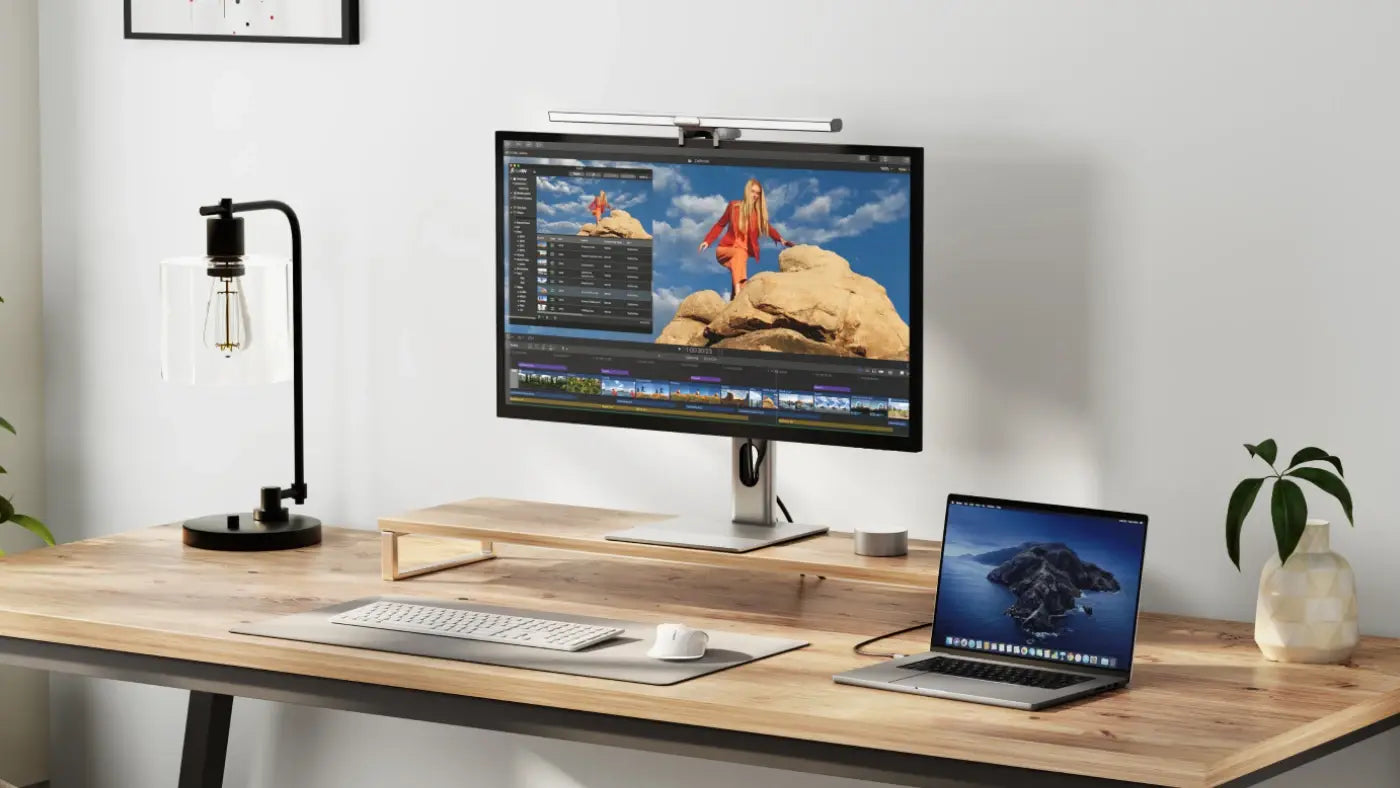
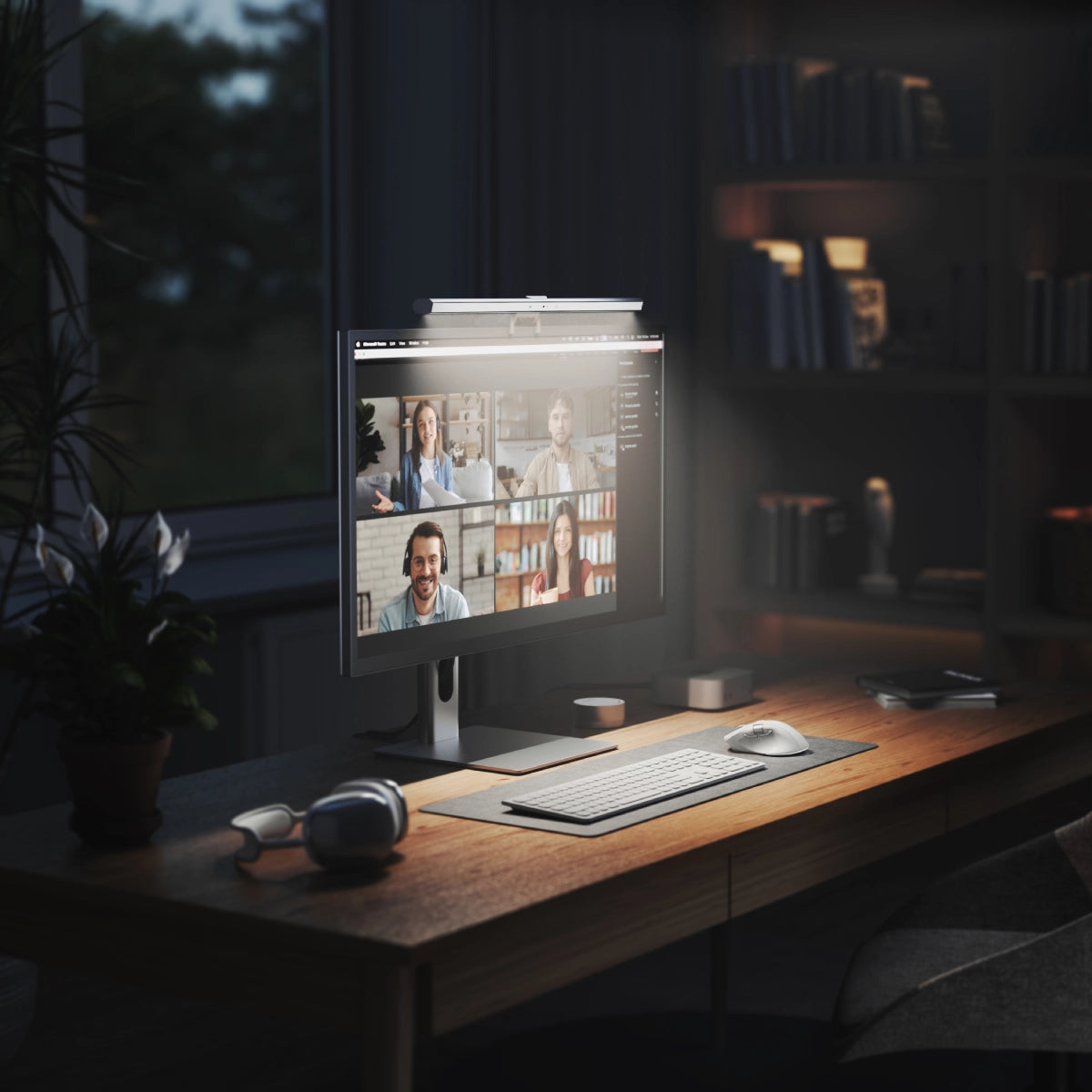
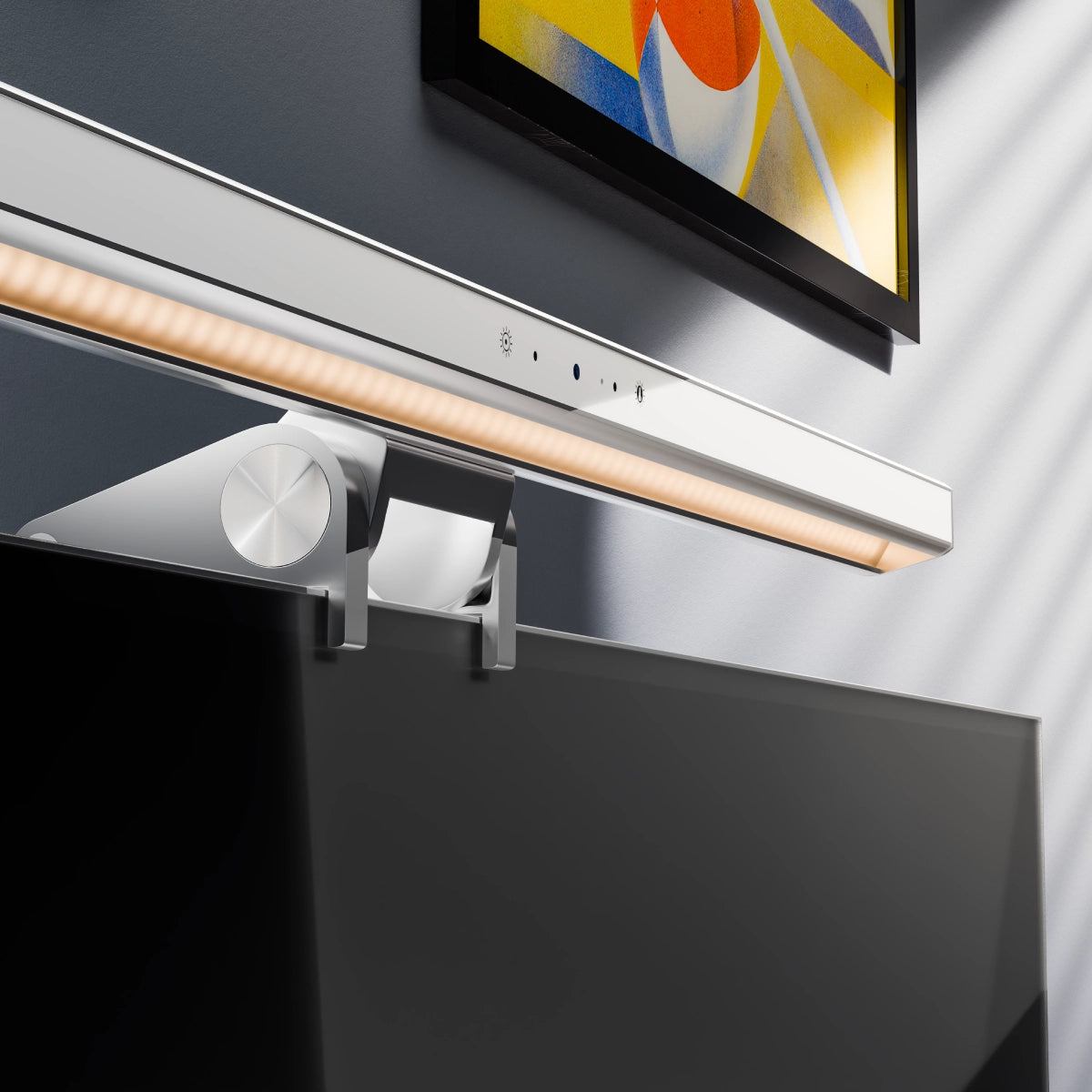
Fully adjustable, Illuminate puts you in control of your workspace with warm or neutral lighting that doesn’t add any unwanted glare to your computer screen.

Intuitive touch controls make it quick and easy to adjust Illuminate's brightness and colour temperature.

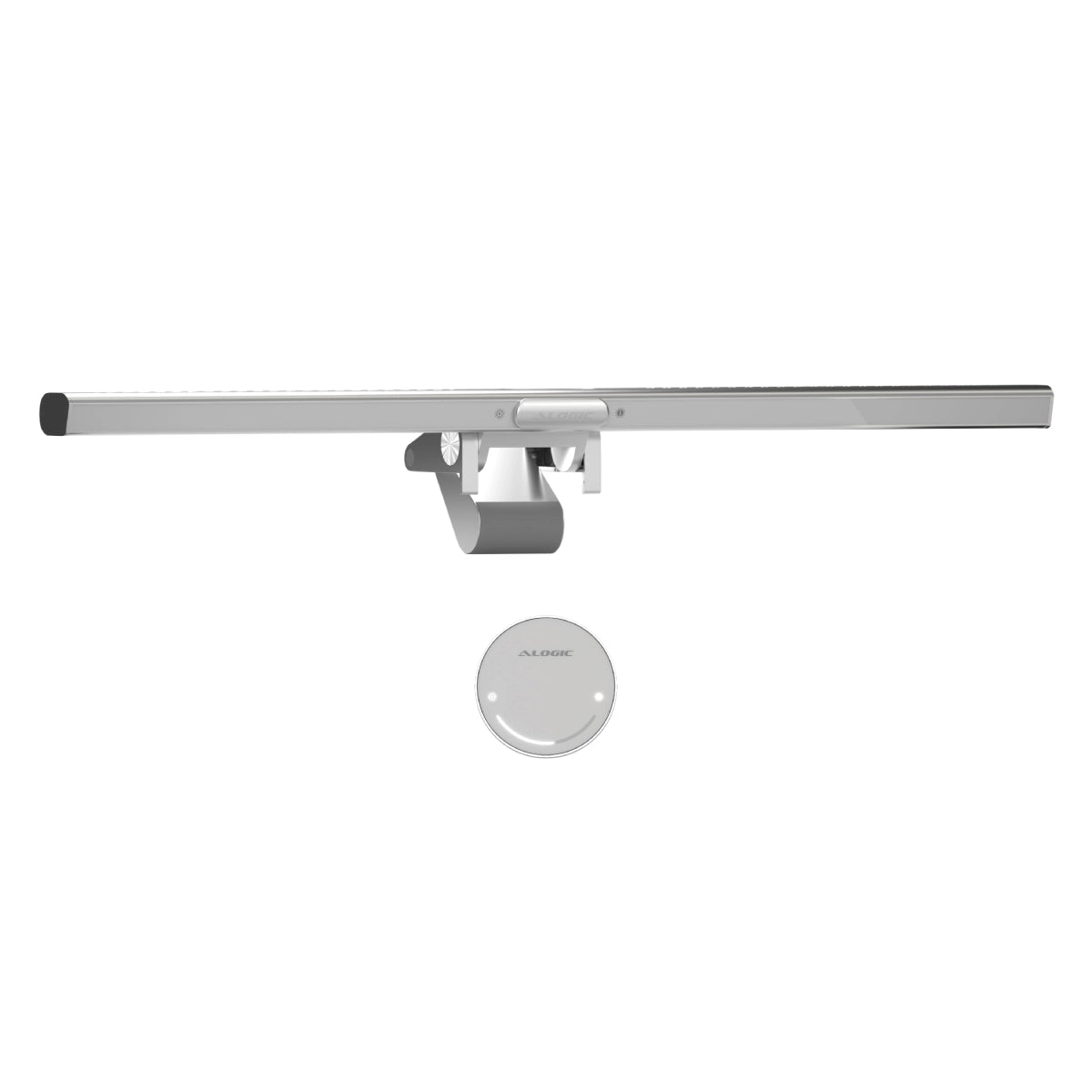
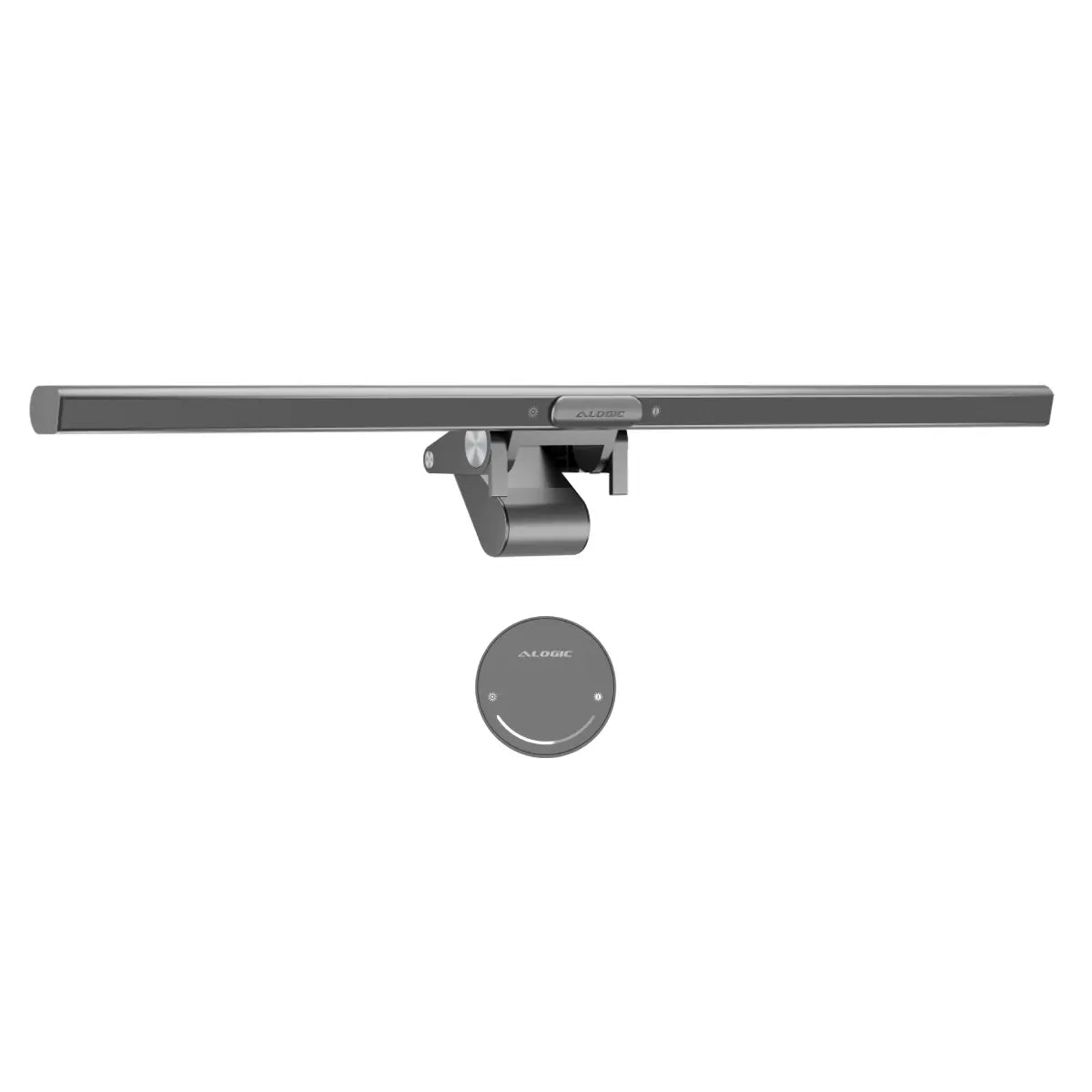
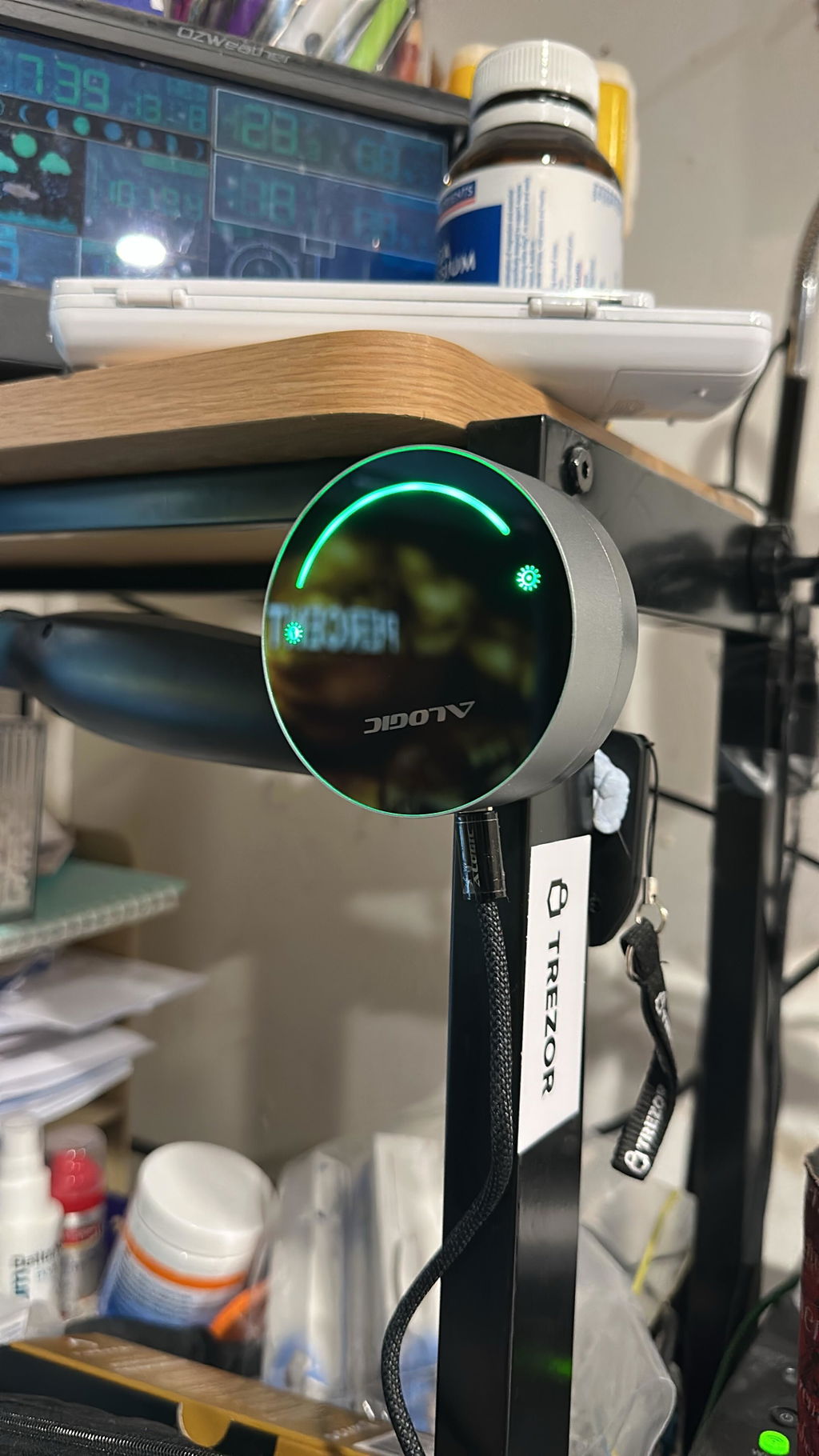
Swipe to adjust the light with Illuminate's snap-on magnetic remote control dial.

If you're still using your laptop's low-angle, unflattering webcam for video calls, you owe it to yourself to try something better. Fully compatible with Mac and Windows, Illuminate's wide-angle 12MP (4K) autofocusing webcam is perfect for meetings, streaming and video recording.
When your call is over, just snap-on Illuminate's magnetic privacy cover over the webcam for peace of mind. Additionally, Illuminate's bright status LED makes it easy to tell when you're sharing.

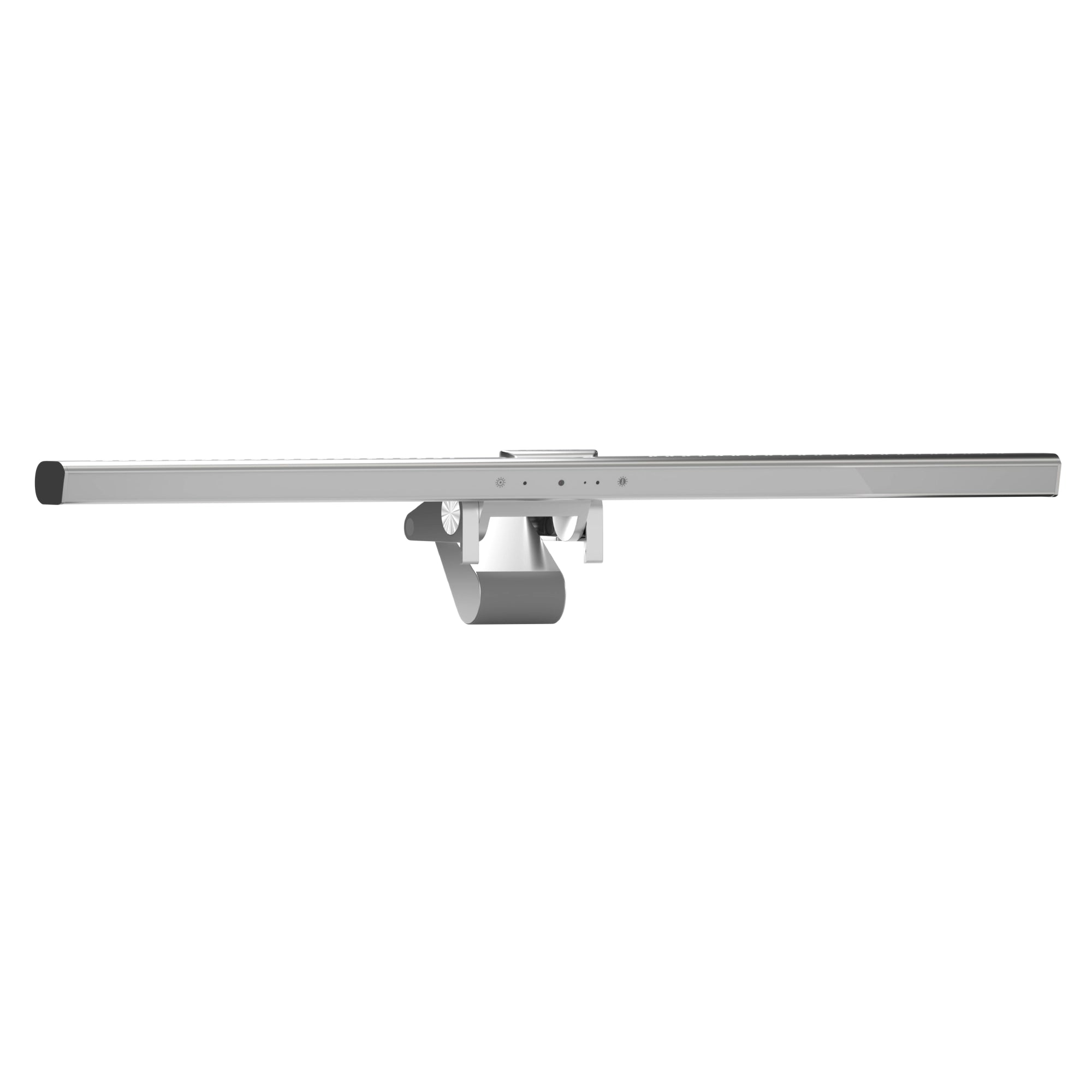
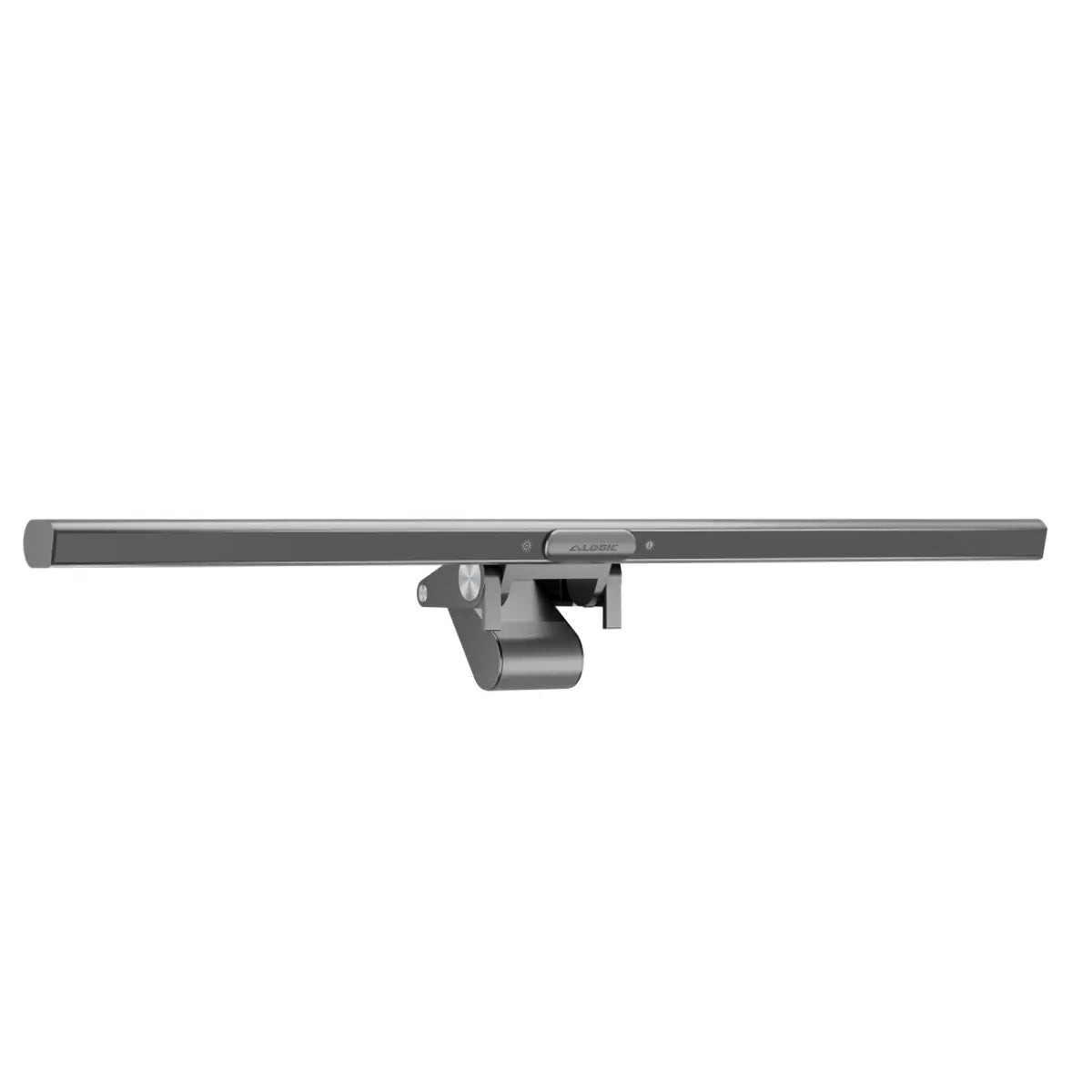
Illuminate's flexible mount allows for tilting to angle the camera or light.

Just unfold the mount, place it on your monitor, and push to secure.

Ensures that Illuminate stays in place, without scratching your monitor.

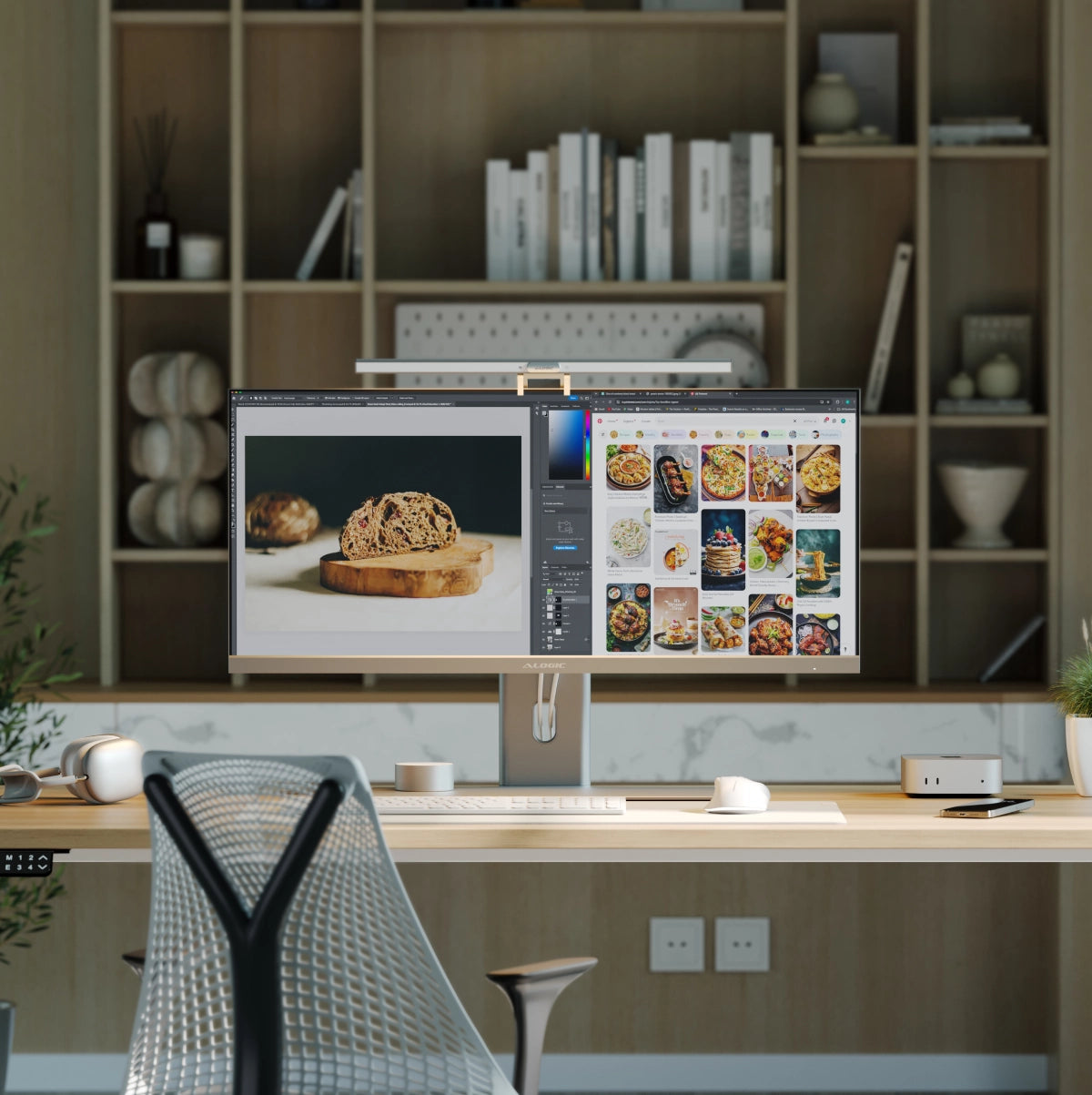
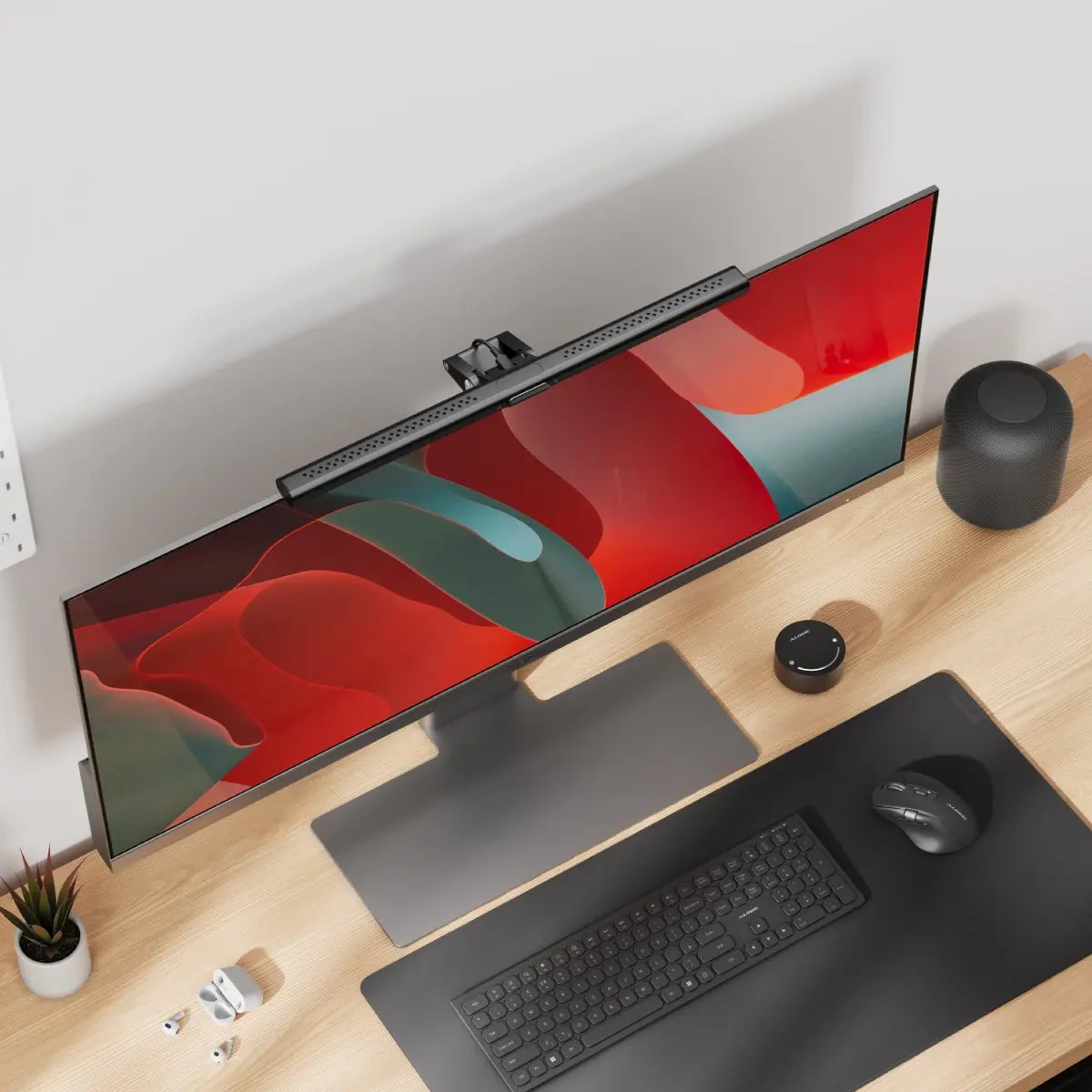
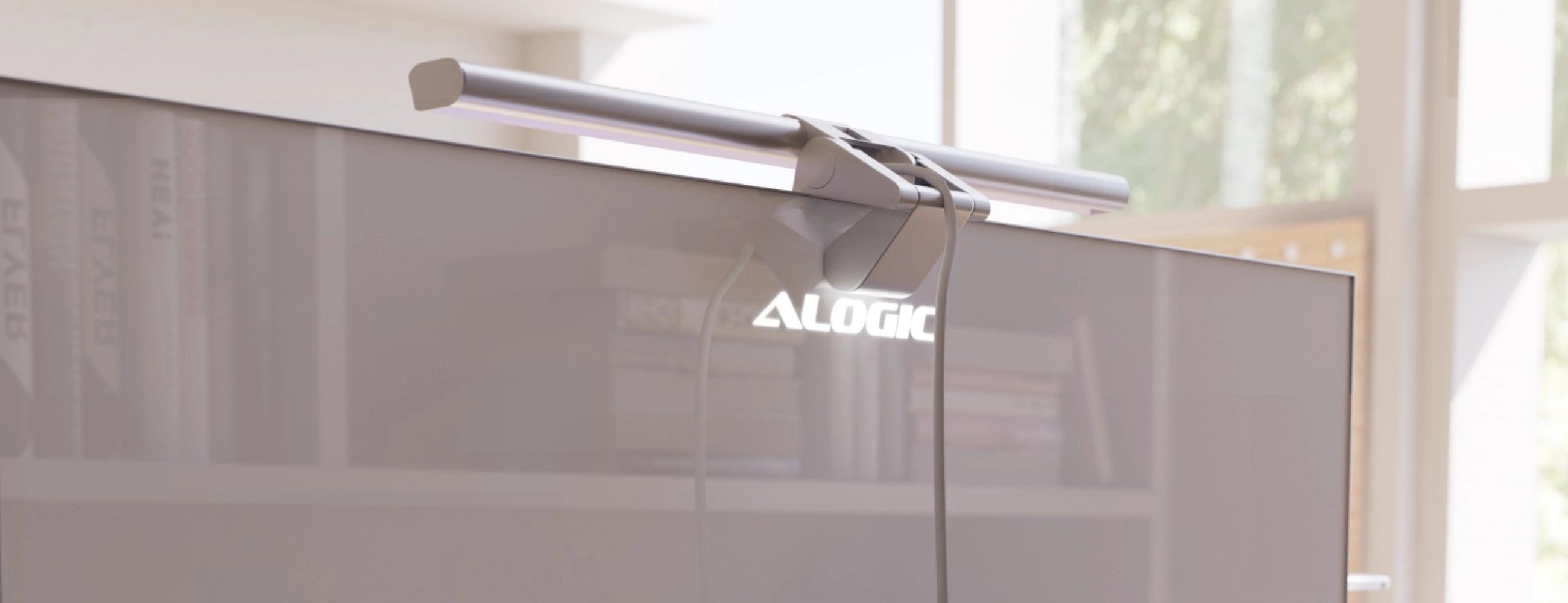
While Illuminate light bars work with any monitors 8-30mm thick, they’re colour matched to our Edge Ultrawide Monitors, providing a perfectly angled 4K webcam powered via Edge’s USB-C ports.
Simply connect Illuminate to your computer or monitor's USB-C port and it's good to go.


General
Illuminate has a 12MP webcam sensor, which roughly corresponds to a 4K resolution (4000x3000).
It outputs the following resolutions and framerates at 16:9 aspect ratio: 4k 30 FPS, 1080p 60 FPS, 1080p 30 FPS, 720p 60 FPS
Illuminate’s light bar can be adjusted between a warm 2,800K and a more neutral 6,500K.
Using the remote control, you can dial into your preferred temperature between these values, while by tapping the Colour Temperature button on the lightbar itself, you can quickly switch between three presets: 1. 2,800K (Warm) 2. 4,500K (Balanced) 3. 6,500K (Neutral)
Absolutely.
Illuminate can be used with any monitor that is between 8-30mm thick at the top and has an available USB-A or USB-C port that can supply 5V (5V/1A) of power and supports USB 2.0 (or newer) data transfer.
Illuminate can be used with either a USB-A or USB-C port, as long as it supports 5V (5V/1A) of power and USB 2.0 (or newer) data transfer.
We recommend consulting the product’s user manual, or the manufacturer’s website to make sure your port supports Illuminate before purchase.
Illuminate does not include a USB-C to USB-A cable, but is compatible with USB-C to USB-A adapters (such as the Ultra USB-A to USB-C Mini Adapter ) or any USB-C to USB-A cables.
Troubleshooting
If Illuminate’s webcam looks blurry, or seems to have a blue tint to it, you may not have removed the protective film. Check your webcam – there should be a little tab you can pull off. If there isn’t a tab, look closely at the camera and try rubbing one of the sides to see if there’s still a plastic film – sometimes the pull tab can get stuck inside the camera itself.
If you’re sure there’s no film and your camera remains either blurry or blue-tinted, please get in touch with our support team: support.jp@alogic.co
Installation
1. Open the Light Bar’s clamp to allow for fitment over your monitor.
2. Position Illuminate’s Support Feet at the front of your screen and fold the Clamp towards the monitor until the Light Bar is stable. Illuminate supports screens 8-30mm thick.
3. Connect the Light Bar’s USB-C Port to your monitor’s USB accessory ports (with at least 5W power output) or your laptop.
4. Tap the Power Button to switch the light on or off.
1. To adjust the brightness, tap and hold the Power/Brightness Button.
2. To change the colour temperature of the light, tap the Colour Temperature Button.
3. Press to adjust colour temperate between fixed levels 2800k - 4500k - 6500k.
4. Press & hold to ramp colour temperature up/down.
1. Connect the Remote Dial’s USB-C Input to a USB power source to charge it.
2. Tap and hold the Power Button and Mode Button for a second to turn the dial on. The dial will automatically go into standby after 20 seconds of inactivity.
3. Tap the Power Button again to switch the Light Bar on or off.
4. Move your finger across the Adjustment Bar to adjust the Brightness.
5. Tap the Mode Button to switch the dial between colour mode and brightness mode. The Adjustment Bar will now change the LED Light from Cool to Warm.
1. Once connected to your computer via USB, Illuminate’s webcam should be automatically available in any application that requires it.
2. Illuminate will auto focus on objects within 30cm-3m of the webcam.
3. For privacy, place the Magnetic Privacy Cover on top of the webcam when not in use.
4. The camera status LED will illuminate when the camera is currently in use.
Troubleshooting
If Illuminate’s webcam looks blurry, or seems to have a blue tint to it, you may not have removed the protective film. Check your webcam – there should be a little tab you can pull off. If there isn’t a tab, look closely at the camera and try rubbing one of the sides to see if there’s still a plastic film – sometimes the pull tab can get stuck inside the camera itself.
If you’re sure there’s no film and your camera remains either blurry or blue-tinted, please get in touch with our support team: support.jp@alogic.co
Rrr

Well all I can say is wow
It’s fantastic and the design is great
The led lights up my whole desktop and brings my old tv monitor to life
Highly recommended
The lightbar is OK. Nothing special.
I ordered a 40" monitor and light bar on 3 October. Delivery will be late November at the earliest. I've had to enquire twice to get the status of the order. Poor customer service.
Great concept but delivery and reality didn’t matc
Lot of issues with camera
ITs the perfect extension HIgh_End design and very nice fits to the monitor - camera quality is OUTSTANDING and ambient light also with remote ! just amazing
Needed to buy an adapter for the webcam, not all pc’s have a usb-c port; happy with the light bar works great. The webcam seems a bit off but I’m running it through Nvidia Studio, so could be a config issue on my side.
Terrible service and now support
Sehr gut
Illuminate USB-C Light Bar with 4K Autofocus Webcam
For the price, this is a great light bar with remote adjustable settings. The built in web cam is very sharp.
Die Webcam der ursprünglichen Lieferung war sehr unscharf und der Autofocus hatte nicht funktioniert. Nach meiner Reklamation wurde das Problem remote untersucht und ich erhielt nach 1 Woche ein Ersatzgerät das jetzt wunderbar meinen Ansprüchen genügt. Ich bin sehr zufrieden.
Illuminate USB-C Light Bar with 4K Autofocus Webcam
Good lightbar
Loving it!
Content arrived fast and has made working at my desk easier on my eyes
Illuminate USB-C Light Bar with 4K Autofocus Webcam
easy installation. Good picture quality
TOP
The light bar works quite well and the webcam function is pretty good, but this bar is far from perfect. The microphone quality is noticeably worse than my older Logitech webcam, and I need to use a separate mic. For the webcam, a sliding cover would have been easier to use. As another review mentioned- the placement of the logo detracts from the sleek and minimalist product design.
Overall, not the greatest purchase.
Illuminate USB-C Light Bar with 4K Autofocus Webcam
First unit had a faulty webcam and poor microphonr quality. ALogic exchanged it, second unit still has poor microphone audiot quality - during meetings people commenting it sounds muffled. Have resorted to using my laptop microphone.
Great quality over all. Love the light and controller. Great value.
The light bar with webcam has been good when I work from home. I like the adjustability of the lamp.
I noticed the rubber grip attached to the base has started to lift alot, although I haven’t owned this product for long. I suggest improving this part.
Love the variable light options and integration with an excellent inbuilt camera/mic
Tbh I don’t know why I didn’t get this sooner. It’s was super easy to put up, plug in and start using!
Highly recommended!!
WebCam LED mit top Qualität und tollen Funktionen. So wünscht man sich Angehörige der apple Familie. alles gut, Andi Berlin
Overall this is a great product that is just as you see it in the promotional photos. Only downsides are it's not intuitive for first time users how to use the touch controls and no clear instructions were provided. Also personal opinion but company logo is not on par with product so having it very visible on product kind of detracts from what is a quality item. Webcam is good compared to others I've tried. Overall definitely recommend.
Had the previous camera which was rather clunky and microphone not the best. This is a serious upgrade and the light works well. Only gripe - the instructions are in such a small, faint font on flimsy stock that it took me longer than it should have done to figure out how to use the light controller.
Illuminate USB-C Light Bar with 4K Autofocus Webcam
