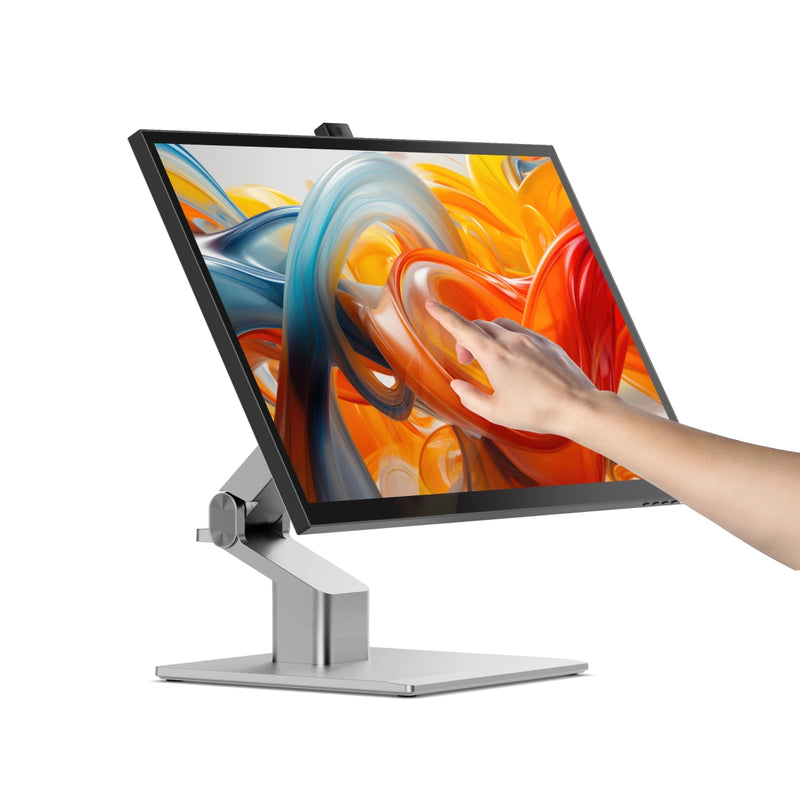
Clarity Fold Touch 27 インチ 4K UHD モニター、65W 電力供給、ウェブカメラ、タッチスクリーン、折りたたみスタンド付き

SKU: 27C4KPDTF
価格:
販売価格¥186,000
在庫:

In Stock

世界をリードする

27 インチ 4K タッチスクリーン モニター

Mac および Windows 用

Mac と Windows Mac と Windows
65W USB-C 充電ドック

65W USB-C 充電ドック

比類のない 4K タッチスクリーン

比類のない 4K タッチスクリーン

4K エッジツーエッジディスプレイ

エッジツーエッジディスプレイ

実践してみよう あなたの作品とともに

グラフィック デザイナーから文書署名者まで、世界中の専門家がワークフローを簡素化するために Clarity Touch の高精度 4K タッチスクリーンを利用しています。 Clarity Touch は、直感的なマルチタッチ ジェスチャと高精度のスタイラスのサポートにより、Mac または Windows コンピュータを 27 インチ iPad™ のように使用できるようにします。

Mac と Windows Mac と Windows

3840x2160

解像度

16:9

アスペクト比

350ニット

最大の明るさ

60Hz

リフレッシュレート

178°

視野角

100%

sRGB

タッチデザイン プロフェッショナル向け
明るく正確な色
明るくて色彩豊か 正確

Clarity の光沢のあるスクリーンは、鮮明で鮮やかで正確な色を実現し、sRGB を 100% カバーし、平均 100% を実現し、明るいホーム オフィスでの使用に最適です。 ΔE は 1 を大きく下回ります。

4K で細部まで見る
を参照してください。 4K の細部まで再現

Clarity Touch の素晴らしい 27 インチ 4K (3840x2160) 画面は、2 つのウィンドウを並べてマルチタスクを行ったり、最新の作品の細部を調べたりするための十分な画面スペースを提供します。

で動作します Mac と Windows

Mac と Windows のどちらに依存して作業を行う場合でも、Clarity の直感的なマルチタッチ ジェスチャと感圧スタイラスのサポートは、お気に入りのアプリケーションで完全にサポートされているのでご安心ください。

Mac と Windows
Mac と Windows
明るく正確な色
マークアップ、サイン &デザイン

スナップオンの Clarity Active Stylus (別売り) と組み合わせると、Clarity Touch は次の大きなアイデアのための完璧な製図板となり、ビジネスで必要な文書に注釈を付けたり署名したりする便利な方法になります。

4096 レベルの筆圧感知と傾きサポートにより、当社のスタイラスは Photoshop、Illustrator、アーティストが愛用するその他のアプリでの使用に最適です。また、数か月続くバッテリー寿命とペアリング不要の接続性を誰もが評価できます。

ハイブリッドスタンド タッチ用に構築

Clarity Touch の人間工学に基づいたスタンドは、数秒で折りたたんで頑丈でサポート力のある表面になり、何時間も快適にスタイラスを使用できます。スタイラスの使用が完了したら、毎日の作業に適したアイラインまでモニターを簡単に上げることができます。

で自分自身を確認してください 大画面

Clarity Touch のスマート ポップアップ ウェブカメラは、最高のアングルを撮影できるように完璧に配置されています。通話が終了すると、Web カメラが自動的にモニター内に滑り込み、プライバシーを保護します。

たるみ チーム ズーム Google Meet Webex
ノートパソコンの充電 USB-Cハブ

すべての Clarity モニターに統合された堅牢な USB-C ハブは、ラップトップを充電して 2 つの USB デバイスにリンクすることで、接続の複雑さを解消します。

Mac と Windows
1

USB-Aポート

お気に入りのアクセサリーに

2

USB-Bポート

古いコンピューターのデータ接続。

3

HDMIポート

4Kビデオを提供します

4

ディスプレイポート

4Kビデオを提供します

5

USB-Cポート

4K ビデオと 65W ラップトップ充電

6

オーディオ出力

ヘッドフォンやスピーカーの場合

7

電源入力

モニターに電力を供給します

1

USB-Aポート

お気に入りのアクセサリーに

2

USB-Bポート

古いコンピューターのデータ接続。

3

HDMIポート

4Kビデオを提供します

4

ディスプレイポート

4Kビデオを提供します

5

USB-Cポート

4K ビデオと 65W ラップトップ充電

6

オーディオ出力

ヘッドフォンやスピーカーの場合

7

電源入力

モニターに電力を供給します

Frequently Asked Questions

General

What size mounting screws should I use with Clarity monitors?
The following assembly instructions can also be found in your product manual, which is available to download from the top of this page.
1. Remove the Clarity Fold Stand from its packaging and insert the stand stem into the base. Secure these with the thumbscrew underneath the fold stand’s base.
2. Place your Clarity Touch monitor face down on a secure, flat surface like a table.
3. Insert the stand’s monitor plate into the VESA mount on the back of your Clarity Monitor, then secure it in place with the four mounting screws provided.
Can I use Clarity Touch for pressure-sensitive drawing in Photoshop/Illustrator/Clip Studio?
Yes, when combined with the Clarity Active Stylus (ALASS2) all Clarity Touch monitors support up to 4096 levels of pressure sensitive pen input on Windows and Mac (with our Clarity Touch Drivers for macOS installed), fully compatible with drawing apps such as Adobe’s Photoshop and Illustrator, AutoDesk Sketchbook, Clip Studio Paint and even Microsoft’s OneNote. If you encounter an app where the pressure-sensitive input doesn’t seem to be working, please reach out and let us know at support@alogic.co and we’ll help figure out what’s going wrong.

Touch

(Windows 10/11) My touch input is controlling the wrong screen!
Sometimes, Clarity Touch’s input will be applied by your computer to another display instead of Pro Touch. If you’re using Windows 10 or 11 with multiple displays you can specify which monitor you want touch input to apply to, which saves you having to mouse over to that display before using touch. To do this, launch Control Panel, click “Hardware and Sound” then ‘Calibrate the screen for pen or touch input’ from the menu. Select “Setup”, choosing “Pen Input” if you’re using an active stylus or “Touch Input” if you’re using your fingers or a capacitive stylus, then follow the onscreen instructions. If completing this process doesn’t resolve your issue, try setting up for the other kind of input. If neither of these work for you, please reach out to our support team (support@alogic.co) and we’ll give you a hand.
(macOS) My touch input is controlling the wrong screen!
When using a touchscreen monitor on an Apple computer, without installing Clarity Touch's macOS drivers, your input is applied to the monitor your cursor was on when you started touching. To ensure your touch input is registered on the correct screen, you can: Install the Clarity Touch's macOS drivers and use the "Identify" tool of UPDD Daemon to designate the correct screen for touch input.

一般的な

Clarity でラップトップを充電するにはどうすればよいですか?
ラップトップ(最大65W)でラップトップを充電するには、必要なワット数をサポートするUSB​​-Cケーブルを介してモニターに接続するだけです。

ただし、コンピューター上のPD(電力供給)と互換性のあるUSB-Cポートに接続する必要があります。

これらは、ラップトップのポートの横にあるバッテリーアイコンの存在によって識別される場合がありますが、多くの場合、ユーザーマニュアルまたはメーカーのWebサイトをチェックして、どのUSB-CポートがPDをサポートしているかを把握する必要があります。

すべてのThunderbolt 3および4ポートはPDをサポートしています。
Clarity の USB-A ポートはどのように使用すればよいですか?
Clarityの2つのリアUSB-Aポートに接続したコンピューターにアクセスするには、コンピューターが次のことを確認する必要があります。

どちらかを介して透明度に接続されています:
  1. 1。ClarityのUSB-Cポート
  2. 2。ClarityのUSB-Bポート

  3. Clarityの「Active USB」モードは、コンピューターに接続しているのと同じUSBポートに設定されています。

    Clarityの「Active USB」モードを変更するには、Clarityのメインメニューの「その他の設定」メニューで「USBスイッチ」に移動します。

    たとえば、コンピューターがUSB-Cを介してClarityに接続されている場合、「USBスイッチ」メニューで「Type-C」を選択します。
Clarity は VESA マウントをサポートしていますか?
はい、Clarity は 100x100mm VESA マウントと互換性があり、4 本の取り付けネジが付属しています。

タッチスクリーン

Clarity Pro Touch ではどの種類のスタイラスを使用できますか?
Clarity Pro Touch は静電容量式タッチ スクリーンで、家電量販店で広く入手できるすべての静電容量式スタイラスで使用できます。
Windows およびタッチ スクリーン ドライバーがインストールされている Mac では、Clarity は Microsoft ペン プロトコル (MPP) 2.0 以降を使用するほとんどのアクティブ スタイラスもサポートします。これには、ALOGIC Active Surface Stylus (ALASS) が含まれます。
ただし、Clarity Pro Touch は、筆圧感知やショートカット ボタンなどのスタイラスのすべての機能を活用できるわけではありません。
タッチスクリーンを使用して Clarity の設定を調整できますか?


はい。
タッチ コントロールを使用して Clarity のオンスクリーン ディスプレイ (OSD) メニューを開くには、画面の右下隅を 2 本の指で左にスワイプします。メニューを開いた状態で、指を使って Clarity の設定を調整するだけです。

トラブルシューティング

USB-C経由でClarityに接続しました。ビデオを取得できないのはなぜですか?
USB-C 経由で Clarity に接続するには、「DP Alt Mode」と互換性のある USB-C ポート、または Thunderbolt 3/4 ポートに接続する必要があります。DP Alt Mode と互換性のある USB-C ポートには、 「DP」記号が付いていますが、多くの場合、通常の USB-C ポートと同じです。 USB-C ポートの横に記号がない場合は、製品マニュアルまたは製造元の Web サイトを参照して、どのポートが DP Alt Mode と互換性があるかを確認する必要があります。お使いのコンピュータが USB-C DP Alt Mode をサポートしていない場合は、または Thunderbolt 3/4 の場合は、HDMI または DisplayPort 経由で接続することをお勧めします。お使いのラップトップがこれらをサポートしていない場合は、ALOGIC Universal Dock を使用して接続できます。これは、DisplayLink テクノロジーを活用して、非 DP Alt Mode USB-C 接続経由でビデオを配信します。
コンピューターをスリープ モードから復帰させても、Clarity が再びオンになりません。
場合によっては、接続されたコンピューターからのウェイクアップ信号を明確に認識しないことが可能です。この問題は、ドックを介してClarityがコンピューターに接続されている場合に最も頻繁に発生します。

問題を解決するには、電源ボタンを2回押して明確に再起動します。接続されたデバイスを起動シーケンスの一部として認識する必要があります。

この問題が続く場合は、次の手順を試して問題を分離することをお勧めします。
  • 1.明確さをコンピューターに直接接続します
  • 2。別のケーブルまたはポートで接続してみてください。
    • •すなわち。 USB-Cの代わりにDisplayPortを使用します
  • 3.コンピューターのオペレーティングシステムを更新します。
あなたの問題が再発し、これらの手順がそれを解決するのに役立ちない場合は、Alogicサポートに連絡してください(support@alogic.co).
画面を回転しても、鮮明さが横向きと縦向きに切り替わりません。
画面を物理的に回転させたときに、Clarity がポートレート モードとランドスケープ モードを自動的に切り替えない場合は、画面の「重力センサー」が無効になっている可能性があります。この機能を使用するには、「その他の設定」メニューでこれを再度有効にします。
ラップトップが充電されないのはなぜですか?
すべてのラップトップの USB-C ポートが USB-C Power Delivery を使用した充電をサポートしているわけではありません。多くのラップトップは、USB-C ポートの 1 つでの充電のみをサポートしています。
充電ケーブルが充電をサポートしているラップトップのポートに接続されていることを確認してください。
Clarity のスピーカーが動作しないのはなぜですか?
Clarity のスピーカーを使用するには、コンピュータの設定でアクティブなサウンド出力デバイスとして「27F34KCPD」を選択する必要があります。また、Clarity の背面 3.5 mm オーディオ ポートにオーディオ デバイスが接続されている場合、Clarity のスピーカーは機能しません。

ウェブカメラ

Clarity のウェブカメラの解像度はどれくらいですか?
Clarity Max Pro/Touch のウェブカメラには 8MP センサー、つまり 800 万ピクセルが搭載されています。これは 4K 画像とほぼ同等です。
ウェブカメラのフレームを調整するにはどうすればよいですか?
ウェブカメラのフレーミングを調整するには、まずウェブカメラをスライドさせる必要があります。

Webカメラを必要とするプログラムを開く - Windows 11では、MacOSで「カメラ」アプリまたは「写真ブース」をお勧めします。

このアプリケーションを開き、アクティブなカメラをClarity Proに切り替えます。これは、フォトブースの「カメラ」メニューを使用したり、カメラの「スイッチカメラ」ボタンを押したりすることができます。以下を参照してください。

Clarity Proのウェブカメラを有効にすると、モニターからスライドします。カメラの背面にあるスクロールホイールを使用して、垂直フレーミングを調整できるようになりました。

Webcam

Does Clarity’s webcam have a microphone?
Yes, Clarity’s webcam includes an array of four microphones to capture sound.
What programs does Clarity’s smart webcam support?
Clarity’s smart webcam slides up and down whenever your computer’s operating system (macOS, Windows, Chrome) attempts to access a webcam feed, not specific integrations with each application. As a result, the webcam will work with any program attempting to access a webcam, not just a few popular ones.
My computer can't see Clarity’s webcam!
For Clarity’s webcam to function, your computer needs to be connected to either the monitor's USB-C or USB-B port. Then you need to ensure that's the active USB port is set to the same - either USB-C or USB-B. This can be set via the "USB-Switch" setting of the monitor's "USB Options" menu. If these two are correct and you can't see your Clarity’s webcam listed in your system's available webcams (listed as either 27C4KPDWT), restart the monitor and your computer. If the webcam still doesn't appear, please contact ALOGIC support: support@alogic.co and we'll help you resolve your issue.
Clarity’s webcam isn't sliding back down!
1. First, do not try to push Clarity's webcam back into the chassis. This can permanently damage the motors.
2. Then ensure that any program accessing your webcam has been closed. This can include messaging, livestreaming, audio recording and video capture applications.
3. Ensure Clarity’s active USB is set to the USB cable connecting your computer and Clarity, USB-C or USB-B. You can find this option in Clarity's menu by navigating to USB-Options --> USB Switch.
Specifications

一般

  • 部品コード + バーコード (EAN): 27C4KPDTF-9350784105356
  • 寸法: 630mm x 460mm x 280mm (長さ x 高さ x 奥行き)
  • 重量:モニター:4.8kg |スタンド:4.8kg
  • :シルバー
  • 材料: プラスチック、アルミニウム、ガラス
  • パッケージ内容: Clarity Touch Monitor、Clarity Fold Stand、USB-C ケーブル、DisplayPort ケーブル、HDMI ケーブル、USB-B to USB-A ケーブル、ユーザーマニュアル
  • 互換性:Windows、macOS(タッチドライバー搭載)
  • 推奨アクセサリ: カメラでライトバーを照らす
  • 保証: 2年

モニター

  • 画面サイズ: 27”
  • パネルの種類:IPS
  • バックライトタイプ: LED
  • スクリーン仕上げ: 光沢
  • アスペクト比: 16:9
  • 解像度: 3840x2160
  • リフレッシュレート:60Hz
  • ピクセル密度:163PPI
  • 明るさ: 350 nit (標準)、320 nit (最小)
  • コントラスト比 (静的): 1000:1
  • 応答時間: 14ms (グレーからグレー)
  • ビット深度: 8ビット+FRC
  • 色域のカバー範囲: 100% sRGB、99% Adobe RGB、99% DCI-P3
  • 平均デルタ E: <1
  • HDR:HDR400
  • タッチスクリーン: 10 ポイント マルチタッチ、ワン グラス ソリューション
  • スタイラスの互換性: MPP 2.0 スタイラス (4096 レベルの筆圧感知)
  • VESAマウント:100×100mm
  • オーディオ: 3.5MM、2x 5W 内蔵スピーカー
Downloads