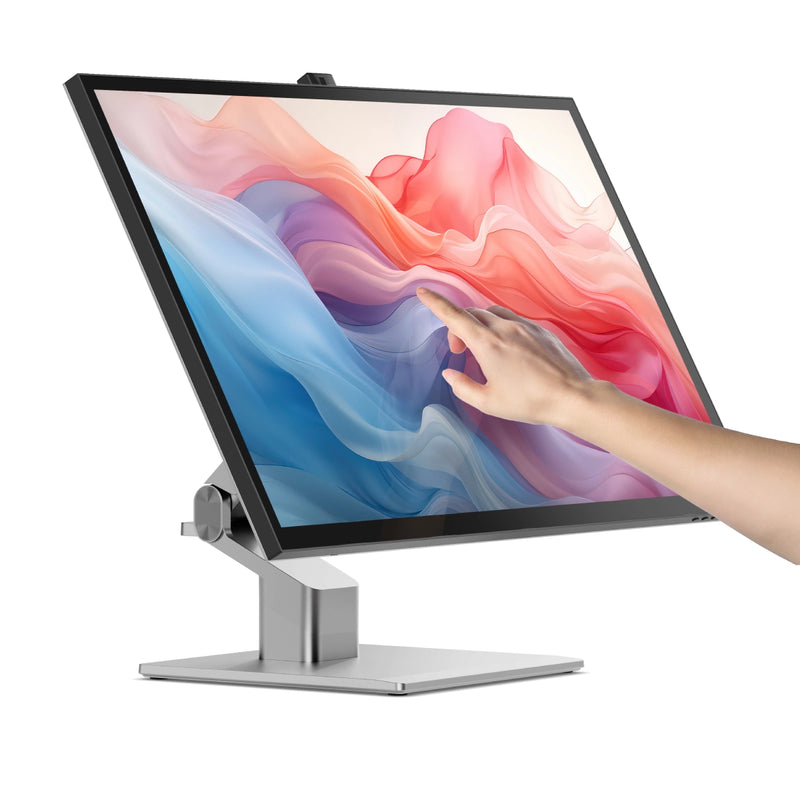
Clarity Fold Touch 32 インチ 4K UHD モニター、65W 電力供給、ウェブカメラ、タッチスクリーン、折りたたみスタンド付き

SKU: 32C4KPDTF
価格:
販売価格¥186,000
在庫:

In Stock

The World's Leading

32" 4K Touchscreen Monitor

for Mac and Windows

Mac and Windows Mac and Windows
65W USB-C Charging Dock

65W USB-C Charging Dock

Unrivalled 4K Touchscreen

Unrivalled 4K Touchscreen

Edge To Edge Display

Edge To Edge Display

Get Hands On With Your Work

From graphic designers to document signers, professionals around the world rely on Clarity Touch’s precision 4K touchscreen to simplify their workflow. With intuitive multitouch gestures and precision stylus support, Clarity Touch empowers you to use your Mac or Windows computer like a 32” iPad™.

Mac and Windows Mac and Windows

3840x2160

Resolution

16:9

Aspect Ratio

320 nits

Max Brightness

60Hz

Refresh Rate

178°

Viewing Angle

98%

sRGB

Touch Designed for Professionals
Bright and Colour Accurate

Clarity’s glossy screen delivers sharp, vibrant and accurate colours, perfect for use in bright home offices, with 98% sRGB and Adobe RGB coverage and an Avg. ΔE well below 1.

See the Fine Details in 4K

Clarity Max Fold’s glorious 32” 4K (3840x2160) screen gives you plenty of screen space for multitasking with two windows side by side, or examine the finest details of your latest creation.

Works with Mac and Windows

Whether you rely on Mac or Windows to get things done, rest assured knowing Clarity’s intuitive multitouch gestures and pressure-sensitive stylus support are fully supported by your favourite applications.

Mac and Windows
Mac and Windows
Bright and Colour Accurate
Mark-up, Sign & Design

When paired with the snap-on Clarity Active Stylus (sold separately), Clarity Touch becomes the perfect drawing board for your next big idea, or a convenient way to annotate or sign documents your business requires.

4096 levels of pressure sensitivity and tilt-support make our stylus ideal for use in Photoshop, Illustrator and other apps that artists love, while everyone can appreciate its months-long battery life and pairing-free connectivity.

Hybrid Stand Built for Touch

Clarity Max Fold’s ergonomic stand folds down in seconds into a sturdy, supportive surface for hours of comfortable stylus use. When you’ve finished with the stylus, it’s easy to raise the monitor up to a comfortable eyeline for everyday work.

See Yourself on the Big Screen

Clarity Max Touch’s smart pop-up webcam is perfectly positioned to capture your best angle. When the call is over, the webcam automatically slides down into the monitor, protecting your privacy.

Slack Teams Zoom Google Meet Webex
Laptop Charging USB-C Hub

The robust USB-C hub integrated into every Clarity monitor takes the complexity out of connectivity by recharging your laptop and linking it to two USB devices

Mac and Windows
1

USB-A Ports

For your favourite accessories

2

USB-B Port

Data connection for old computers.

3

HDMI Ports

Provides 4K video

4

DisplayPort

Provides 4K video

5

USB-C Port

4K video & 65W laptop charging

6

Audio Output

For headphones or speakers

7

Power Input

Powers your monitor

1

USB-A Ports

For your favourite accessories

2

USB-B Port

Data connection for old computers.

3

HDMI Ports

Provides 4K video

4

DisplayPort

Provides 4K video

5

USB-C Port

4K video & 65W laptop charging

6

Audio Output

For headphones or speakers

7

Power Input

Powers your monitor

Frequently Asked Questions

General

What size mounting screws should I use with Clarity monitors?
The following assembly instructions can also be found in your product manual, which is available to download from the top of this page.
1. Remove the Clarity Fold Stand from its packaging and insert the stand stem into the base. Secure these with the thumbscrew underneath the fold stand’s base.
2. Place your Clarity Touch monitor face down on a secure, flat surface like a table.
3. Insert the stand’s monitor plate into the VESA mount on the back of your Clarity Monitor, then secure it in place with the four mounting screws provided.
Can I use Clarity Touch for pressure-sensitive drawing in Photoshop/Illustrator/Clip Studio?
Yes, when combined with the Clarity Active Stylus (ALASS2) all Clarity Touch monitors support up to 4096 levels of pressure sensitive pen input on Windows and Mac (with our Clarity Touch Drivers for macOS installed), fully compatible with drawing apps such as Adobe’s Photoshop and Illustrator, AutoDesk Sketchbook, Clip Studio Paint and even Microsoft’s OneNote. If you encounter an app where the pressure-sensitive input doesn’t seem to be working, please reach out and let us know at support@alogic.co and we’ll help figure out what’s going wrong.

Touch

(Windows 10/11) My touch input is controlling the wrong screen!
Sometimes, Clarity Touch’s input will be applied by your computer to another display instead of Pro Touch. If you’re using Windows 10 or 11 with multiple displays you can specify which monitor you want touch input to apply to, which saves you having to mouse over to that display before using touch. To do this, launch Control Panel, click “Hardware and Sound” then ‘Calibrate the screen for pen or touch input’ from the menu. Select “Setup”, choosing “Pen Input” if you’re using an active stylus or “Touch Input” if you’re using your fingers or a capacitive stylus, then follow the onscreen instructions. If completing this process doesn’t resolve your issue, try setting up for the other kind of input. If neither of these work for you, please reach out to our support team (support@alogic.co) and we’ll give you a hand.
(macOS) My touch input is controlling the wrong screen!
When using a touchscreen monitor on an Apple computer, without installing Clarity Touch's macOS drivers, your input is applied to the monitor your cursor was on when you started touching. To ensure your touch input is registered on the correct screen, you can: Install the Clarity Touch's macOS drivers and use the "Identify" tool of UPDD Daemon to designate the correct screen for touch input.

一般的な

Clarity でラップトップを充電するにはどうすればよいですか?
ラップトップ(最大65W)でラップトップを充電するには、必要なワット数をサポートするUSB​​-Cケーブルを介してモニターに接続するだけです。

ただし、コンピューター上のPD(電力供給)と互換性のあるUSB-Cポートに接続する必要があります。

これらは、ラップトップのポートの横にあるバッテリーアイコンの存在によって識別される場合がありますが、多くの場合、ユーザーマニュアルまたはメーカーのWebサイトをチェックして、どのUSB-CポートがPDをサポートしているかを把握する必要があります。

すべてのThunderbolt 3および4ポートはPDをサポートしています。
Clarity の USB-A ポートはどのように使用すればよいですか?
Clarityの2つのリアUSB-Aポートに接続したコンピューターにアクセスするには、コンピューターが次のことを確認する必要があります。

どちらかを介して透明度に接続されています:
  1. 1。ClarityのUSB-Cポート
  2. 2。ClarityのUSB-Bポート

  3. Clarityの「Active USB」モードは、コンピューターに接続しているのと同じUSBポートに設定されています。

    Clarityの「Active USB」モードを変更するには、Clarityのメインメニューの「その他の設定」メニューで「USBスイッチ」に移動します。

    たとえば、コンピューターがUSB-Cを介してClarityに接続されている場合、「USBスイッチ」メニューで「Type-C」を選択します。
Clarity は VESA マウントをサポートしていますか?
はい、Clarity は 100x100mm VESA マウントと互換性があり、4 本の取り付けネジが付属しています。

タッチスクリーン

Clarity Pro Touch ではどの種類のスタイラスを使用できますか?
Clarity Pro Touch は静電容量式タッチ スクリーンで、家電量販店で広く入手できるすべての静電容量式スタイラスで使用できます。
Windows およびタッチ スクリーン ドライバーがインストールされている Mac では、Clarity は Microsoft ペン プロトコル (MPP) 2.0 以降を使用するほとんどのアクティブ スタイラスもサポートします。これには、ALOGIC Active Surface Stylus (ALASS) が含まれます。
ただし、Clarity Pro Touch は、筆圧感知やショートカット ボタンなどのスタイラスのすべての機能を活用できるわけではありません。
タッチスクリーンを使用して Clarity の設定を調整できますか?


はい。
タッチ コントロールを使用して Clarity のオンスクリーン ディスプレイ (OSD) メニューを開くには、画面の右下隅を 2 本の指で左にスワイプします。メニューを開いた状態で、指を使って Clarity の設定を調整するだけです。

トラブルシューティング

USB-C経由でClarityに接続しました。ビデオを取得できないのはなぜですか?
USB-C 経由で Clarity に接続するには、「DP Alt Mode」と互換性のある USB-C ポート、または Thunderbolt 3/4 ポートに接続する必要があります。DP Alt Mode と互換性のある USB-C ポートには、 「DP」記号が付いていますが、多くの場合、通常の USB-C ポートと同じです。 USB-C ポートの横に記号がない場合は、製品マニュアルまたは製造元の Web サイトを参照して、どのポートが DP Alt Mode と互換性があるかを確認する必要があります。お使いのコンピュータが USB-C DP Alt Mode をサポートしていない場合は、または Thunderbolt 3/4 の場合は、HDMI または DisplayPort 経由で接続することをお勧めします。お使いのラップトップがこれらをサポートしていない場合は、ALOGIC Universal Dock を使用して接続できます。これは、DisplayLink テクノロジーを活用して、非 DP Alt Mode USB-C 接続経由でビデオを配信します。
コンピューターをスリープ モードから復帰させても、Clarity が再びオンになりません。
場合によっては、接続されたコンピューターからのウェイクアップ信号を明確に認識しないことが可能です。この問題は、ドックを介してClarityがコンピューターに接続されている場合に最も頻繁に発生します。

問題を解決するには、電源ボタンを2回押して明確に再起動します。接続されたデバイスを起動シーケンスの一部として認識する必要があります。

この問題が続く場合は、次の手順を試して問題を分離することをお勧めします。
  • 1.明確さをコンピューターに直接接続します
  • 2。別のケーブルまたはポートで接続してみてください。
    • •すなわち。 USB-Cの代わりにDisplayPortを使用します
  • 3.コンピューターのオペレーティングシステムを更新します。
あなたの問題が再発し、これらの手順がそれを解決するのに役立ちない場合は、Alogicサポートに連絡してください(support@alogic.co).
画面を回転しても、鮮明さが横向きと縦向きに切り替わりません。
画面を物理的に回転させたときに、Clarity がポートレート モードとランドスケープ モードを自動的に切り替えない場合は、画面の「重力センサー」が無効になっている可能性があります。この機能を使用するには、「その他の設定」メニューでこれを再度有効にします。
ラップトップが充電されないのはなぜですか?
すべてのラップトップの USB-C ポートが USB-C Power Delivery を使用した充電をサポートしているわけではありません。多くのラップトップは、USB-C ポートの 1 つでの充電のみをサポートしています。
充電ケーブルが充電をサポートしているラップトップのポートに接続されていることを確認してください。
Clarity のスピーカーが動作しないのはなぜですか?
Clarity のスピーカーを使用するには、コンピュータの設定でアクティブなサウンド出力デバイスとして「27F34KCPD」を選択する必要があります。また、Clarity の背面 3.5 mm オーディオ ポートにオーディオ デバイスが接続されている場合、Clarity のスピーカーは機能しません。

ウェブカメラ

Clarity のウェブカメラの解像度はどれくらいですか?
Clarity Max Pro/Touch のウェブカメラには 8MP センサー、つまり 800 万ピクセルが搭載されています。これは 4K 画像とほぼ同等です。
ウェブカメラのフレームを調整するにはどうすればよいですか?
ウェブカメラのフレーミングを調整するには、まずウェブカメラをスライドさせる必要があります。

Webカメラを必要とするプログラムを開く - Windows 11では、MacOSで「カメラ」アプリまたは「写真ブース」をお勧めします。

このアプリケーションを開き、アクティブなカメラをClarity Proに切り替えます。これは、フォトブースの「カメラ」メニューを使用したり、カメラの「スイッチカメラ」ボタンを押したりすることができます。以下を参照してください。

Clarity Proのウェブカメラを有効にすると、モニターからスライドします。カメラの背面にあるスクロールホイールを使用して、垂直フレーミングを調整できるようになりました。

Webcam

Does Clarity’s webcam have a microphone?
Yes, Clarity’s webcam includes an array of four microphones to capture sound.
What programs does Clarity’s smart webcam support?
Clarity’s smart webcam slides up and down whenever your computer’s operating system (macOS, Windows, Chrome) attempts to access a webcam feed, not specific integrations with each application. As a result, the webcam will work with any program attempting to access a webcam, not just a few popular ones.
My computer can't see Clarity’s webcam!
For Clarity’s webcam to function, your computer needs to be connected to either the monitor's USB-C or USB-B port. Then you need to ensure that's the active USB port is set to the same - either USB-C or USB-B. This can be set via the "USB-Switch" setting of the monitor's "USB Options" menu. If these two are correct and you can't see your Clarity’s webcam listed in your system's available webcams (listed as either 27C4KPDWT), restart the monitor and your computer. If the webcam still doesn't appear, please contact ALOGIC support: support@alogic.co and we'll help you resolve your issue.
Clarity’s webcam isn't sliding back down!
1. First, do not try to push Clarity's webcam back into the chassis. This can permanently damage the motors.
2. Then ensure that any program accessing your webcam has been closed. This can include messaging, livestreaming, audio recording and video capture applications.
3. Ensure Clarity’s active USB is set to the USB cable connecting your computer and Clarity, USB-C or USB-B. You can find this option in Clarity's menu by navigating to USB-Options --> USB Switch.
Specifications

General

  • Part Code + Barcode (EAN): 32C4KPDTF - 9350784105363
  • Dimensions: 726mm x 490mm x 280mm (L x H x D)
  • Weight: Monitor: 6.5kg | Stand: 4.8kg
  • Colour: Silver
  • Materials: Plastic, Aluminium, Glass
  • Package Includes: Clarity Max Touch Monitor, Clarity Fold Stand, USB-C Cable, DisplayPort Cable, HDMI Cable, USB-B to USB-A Cable, User Manual
  • Compatibility: Windows, macOS (with touch drivers)
  • Recommended Accessories: Illuminate Light Bar with Camera
  • Warranty: 2 Years

Monitor

  • Screen Size: 32”
  • Panel Type: VA
  • Backlight Type: LED
  • Screen Finish: Gloss
  • Aspect Ratio: 16:9
  • Resolution: 3840x2160
  • Refresh Rate: 60Hz
  • Pixel Density: 138 PPI
  • Brightness: 350 nits (Typical), 320 nits (Minimum)
  • Contrast Ratio (Static): 3000:1
  • Response Time: 20ms (Grey to Grey)
  • Bit Depth: 8-bit
  • Colour Gamut Coverage: 98% sRGB, 98% Adobe RGB, 94% DCI-P3
  • Avg. Delta E: <1
  • HDR: HDR 400
  • Touchscreen: 10 Point Multitouch, One Glass Solution
  • Stylus Compatibility: MPP 2.0 Styluses (4096 levels of pressure sensitivity)
  • VESA Mount: 100x100mm
  • Audio: 3.5MM, 2x 5W inbuilt speakers

Connectivity

  • Ports: 2x HDMI, 1x DisplayPort, 1x USB-C (3.2), 1x 3.5mm Audio, 2x USB-A (3.2), 1x USB-B (3.0)
  • USB-C Power Passthrough: Up to 65W (45W in HDR Mode)
  • Power Adapter: Input: AC 100-240V~, 50/60Hz
    Output: DC 19.5V⎓9.23A, (180W Max)
Downloads